Happy Camper: What Every Crafter Should Know Before Downloading and Using SVG Design Files
If you have spent any time browsing digital design bundles, you have likely come across a set called Happy Camper. The name alone evokes a relaxed, outdoorsy aesthetic that appeals to crafters, small business owners, and hobbyists alike. But before you click download, there are a few things worth understanding about what you are actually getting, how to use it correctly, and what often trips people up. This article walks through the common mistakes, overlooked details, and practical strategies that will save you time, frustration, and wasted materials.
What Happy Camper Actually Includes
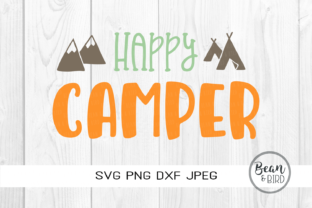
A typical Happy Camper download includes the following files: SVG, DXF, PNG transparent, and JPEG. These file types are designed to work with Silhouette, Cricut, and other compatible cutting software. It is important to understand that display files are not included. Display files are used for design inspiration only, meaning the preview images you see on a listing are not part of the actual download. Watermarks and logos will not appear on your purchased items, but they may appear in preview images. This distinction matters more than most people realize.
Mistake Number One: Assuming All File Types Are Interchangeable
A common misunderstanding is that all four file formats serve the same purpose. They do not. The SVG file is the most useful for cutting machines because it preserves vector paths and allows for clean, precise cuts. The DXF file is also a vector format, but it may behave differently depending on your software version. The PNG transparent file is ideal for digital use, such as mockups or print-on-demand, but it is a raster image and will not cut cleanly if imported directly as a cut file. The JPEG is for reference or printing, not for cutting.
When you assume any file will work for any task, you end up with jagged cuts, misaligned layers, or wasted adhesive vinyl. The practical fix is simple: always use the SVG file for cutting and the PNG for digital previews. If your software struggles with SVG, try the DXF, but test a small cut first before committing to a full project.
Mistake Number Two: Ignoring Software Compatibility Details
Even though the product description states that these files work with Silhouette and Cricut, not all versions of the software handle SVG files the same way. Older versions of Silhouette Studio, for example, may require you to import DXF instead of SVG. Cricut Design Space generally handles SVG well, but imported files sometimes arrive with unexpected group settings or incorrect scaling.
If you skip the step of checking your software version, you may spend an hour troubleshooting a file that opens with missing elements or distorted shapes. The better approach is to open the file in a free vector viewer first. This lets you confirm the design looks correct before you import it into your cutting software. It takes two minutes and prevents a great deal of frustration.
Mistake Number Three: Overlooking the Difference Between Display Files and Download Files
Display files are not included in the download. That phrase appears in many listings, yet it is often ignored. Display files are the stylized mockups, photographs, or composite images that sellers use to show the design in context. They are for inspiration only. What you actually receive are the clean, unadorned vector files and raster images.
People sometimes expect the exact colors, textures, or layered backgrounds shown in the preview. When they open the download and see a plain black SVG or a transparent PNG, they feel misled. The truth is that display files are marketing assets, not deliverables. If you understand this upfront, you will not be disappointed. You can recreate the look yourself by layering the design onto a background in your own software.
Mistake Number Four: Not Testing Files Before Cutting Expensive Materials
This mistake is the most expensive. You download Happy Campers, import the SVG directly into Design Space, hit cut on a sheet of holographic vinyl, and only realize halfway through that the design is scaled incorrectly or that a small detail is disconnected. By then, the vinyl is wasted.
Always test on plain copy paper or cheap cardstock first. This lets you check size, detail thickness, and overall layout without wasting premium materials. For intricate designs, consider increasing the size slightly to preserve small cut lines. A test cut takes five minutes and saves you from the disappointment of ruining a costly sheet of adhesive vinyl or heat transfer material.
Mistake Number Five: Misunderstanding Transparent PNG Uses
The PNG transparent file is incredibly useful, but only if you use it for the right purpose. Many crafters try to upload a PNG into their cutting software as if it were a vector file. The result is a cut outline that traces the outer edge of the image rather than the internal design details. You end up with a solid shape instead of the intended artwork.
Use the PNG for digital mockups, social media posts, print-on-demand products, or sublimation printing. Do not use it for vinyl cutting unless your software has a reliable trace function and you are comfortable manually cleaning up the paths. Even then, the SVG will always produce a cleaner cut.
Mistake Number Six: Forgetting to Unzip the Downloaded Folder
This sounds too basic to mention, but it happens constantly. Files arrive in a compressed ZIP folder. Beginners sometimes try to import the ZIP directly into their cutting software, which cannot read it. They then assume the file is corrupted or the download failed.
The fix is straightforward: right-click the ZIP folder and select Extract All on Windows, or double-click to unzip on Mac. Once extracted, you will see the individual SVG, DXF, PNG, and JPEG files. Import the one you need. If you are unsure how to unzip files, a quick online search will walk you through it. This small step resolves a huge percentage of user support tickets.
Mistake Number Seven: Ignoring Design Intricacy When Choosing Materials
Happy Camper designs often feature nature-inspired elements like trees, campers, mountains, and stars. These can include thin lines, small gaps, or delicate details. If you cut such a design on a material that is difficult to weed, like glitter vinyl or textured HTV, you may find that small pieces tear or lift during weeding.
Before cutting, look at the SVG in your software at actual size. If you see very thin strokes or tiny interior cutouts, consider sizing up or choosing a sturdier material. Matte adhesive vinyl and smooth HTV are more forgiving. Glitter vinyl is beautiful but requires wider gaps and thicker lines to weed cleanly. Matching design complexity to material properties makes the difference between a frustrating project and a satisfying one.
Mistake Number Eight: Not Checking Commercial Use Terms
If you plan to sell finished products made with Happy Camper files, you need to verify the commercial use license. Some design bundles include commercial rights, while others are restricted to personal use only. The product description may say, "Made to use with Silhouette, Cricut, and other compatible cutting software," but it does not automatically grant you permission to sell the physical items.
Always read the terms before purchasing. If the listing does not clarify, contact the seller. Using a design without the proper license can lead to takedown notices or loss of selling privileges on platforms like Etsy. This is one area where assuming the worst and verifying early saves legal headaches later.
How to Get the Best Results with Happy Camper Files
Now that the common mistakes are covered, here is a straightforward workflow that works reliably:
- Unzip the folder and open the SVG in a free vector viewer or directly in your cutting software.
- Scale the design to your desired size. Check for thin lines or small details. Adjust if needed.
- Test cut on paper to verify the design cuts as expected. Make any necessary adjustments.
- Choose the right material based on the design complexity. Simpler designs can handle textured materials; intricate designs need smooth, easy-to-weed options.
- Use the correct file type for your task: SVG for cutting, PNG for digital use, JPEG for printing reference, DXF as a backup if SVG does not load properly.
- Save the commercial use license in a folder alongside your downloads for future reference if you sell finished products.
Why Understanding File Types Matters More Than You Think
The distinction between SVG, DXF, PNG, and JPEG is not just technical jargon. It directly affects how your final product looks and how much time you spend getting there. When you use the correct file for the correct application, cuts are cleaner, weeding is faster, and your finished item looks professional. When you mix them up, you waste time, materials, and patience.
Happy Camper is a great design set, but like any digital product, its value depends on how well you use it. Taking a few extra minutes to understand file types, software quirks, and material properties transforms a potentially frustrating experience into a smooth, enjoyable craft session.
A Final Word for Beginners and Experienced Crafters Alike
Whether you are buying your first SVG bundle or your fiftieth, the same principles apply. Check your software compatibility. Understand the difference between display files and download files. Test before cutting expensive materials. Read the license terms. And never assume that because a file opens, it will cut correctly.
Happy Camper designs can produce beautiful camper-themed decals, t-shirts, mugs, tote bags, and more. With the right approach, you will get consistent, high-quality results every time. Pay attention to the details, and your finished projects will speak for themselves.